
In the fast-paced world of digital productivity, efficiency is key. One of the most powerful tools that can significantly enhance your workflow is the Quick Access Bar. This feature, available in various software applications, provides a streamlined way to access frequently used commands and tools, saving time and reducing the need to navigate through complex menus. Whether you are a professional designer, a data analyst, or a casual user, understanding and utilizing the Quick Access Bar can transform your digital experience.
Understanding the Quick Access Bar
The Quick Access Bar is a customizable toolbar that allows users to pin their most frequently used commands and tools for easy access. This feature is particularly useful in applications like Microsoft Office, Adobe Creative Suite, and various other productivity software. By placing essential commands at your fingertips, the Quick Access Bar helps you work more efficiently and reduces the time spent searching for tools.
Customizing the Quick Access Bar
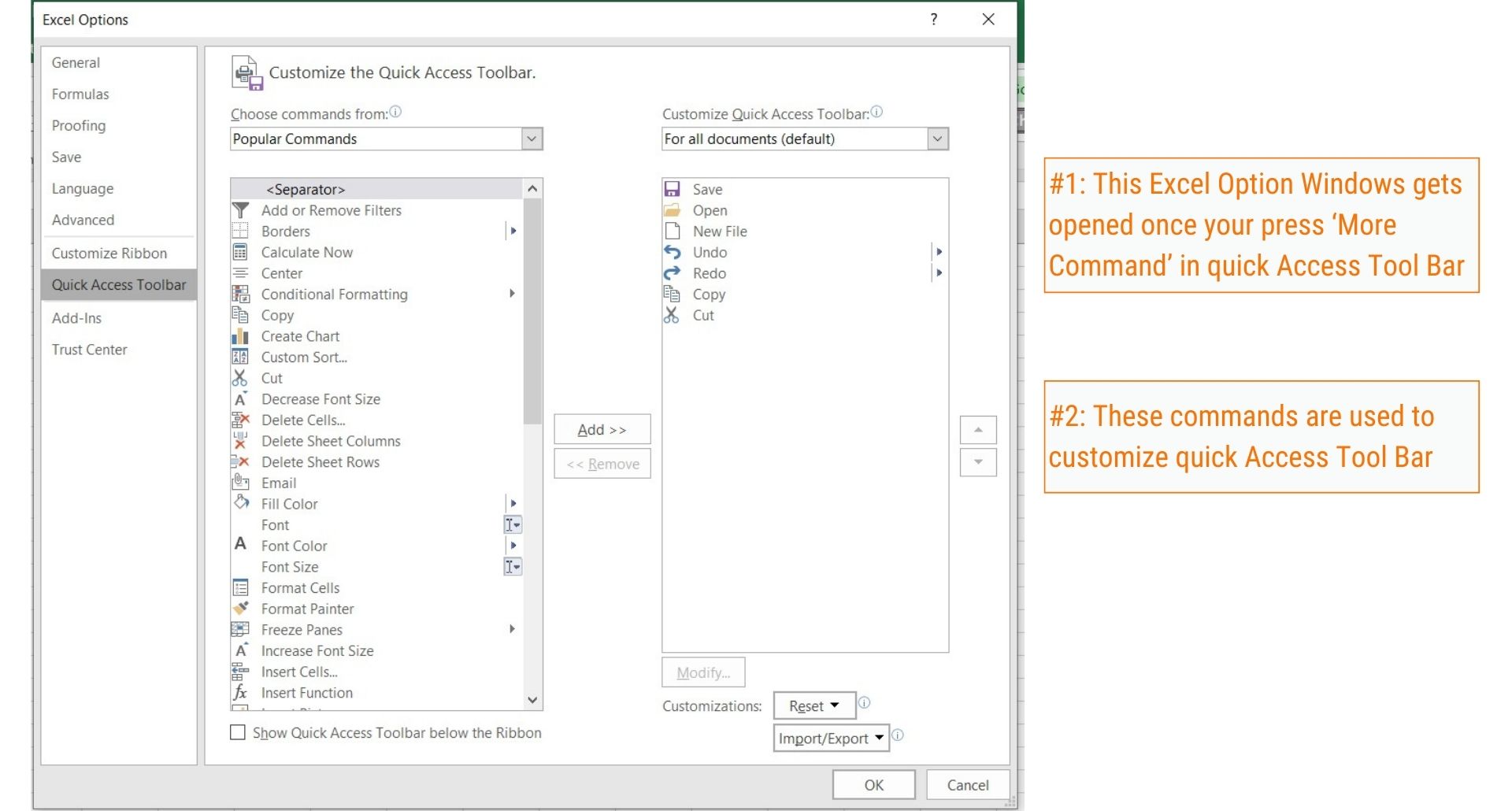
Customizing the Quick Access Bar is straightforward and can be tailored to meet your specific needs. Here’s a step-by-step guide on how to customize it in Microsoft Office, which is a common application that utilizes this feature:
- Open any Microsoft Office application (e.g., Word, Excel, PowerPoint).
- Locate the Quick Access Bar at the top left corner of the application window.
- Click on the dropdown arrow next to the Quick Access Bar to open the customization menu.
- Select "More Commands" from the dropdown menu.
- In the "Choose commands from" dropdown menu, select the category of commands you want to add (e.g., Popular Commands, All Commands, etc.).
- Select the command you want to add to the Quick Access Bar and click "Add."
- Repeat the process to add more commands as needed.
- Click "OK" to save your changes.
💡 Note: You can also remove commands from the Quick Access Bar by selecting them in the customization menu and clicking "Remove."
Benefits of Using the Quick Access Bar
The Quick Access Bar offers numerous benefits that can enhance your productivity and streamline your workflow. Some of the key advantages include:
- Time Savings: By placing frequently used commands in one location, you can save time that would otherwise be spent navigating through menus.
- Ease of Use: The Quick Access Bar provides a user-friendly interface that makes it easy to access essential tools without extensive training.
- Customization: The ability to customize the Quick Access Bar allows you to tailor it to your specific needs, ensuring that the most relevant commands are always within reach.
- Consistency: Once customized, the Quick Access Bar remains consistent across different applications, providing a familiar interface regardless of the software you are using.
Examples of Quick Access Bar Usage
The Quick Access Bar can be utilized in various applications to enhance productivity. Here are a few examples:
Microsoft Office
In Microsoft Office, the Quick Access Bar can be customized to include commands like "Save," "Undo," "Redo," "Print," and "New." This ensures that essential file management and editing tools are always accessible, reducing the need to navigate through menus.
Adobe Creative Suite
In Adobe Creative Suite, the Quick Access Bar can be used to pin frequently used tools like the "Brush Tool," "Eraser Tool," and "Selection Tool." This allows designers to quickly switch between tools without interrupting their creative flow.
Data Analysis Software
In data analysis software like Excel or specialized tools, the Quick Access Bar can include commands for data manipulation, chart creation, and formula insertion. This makes it easier to perform complex data analysis tasks efficiently.
Advanced Customization Tips
For power users, advanced customization of the Quick Access Bar can further enhance productivity. Here are some tips to get the most out of this feature:
- Grouping Commands: Organize related commands into groups to make them easier to find and use. For example, group all file management commands together.
- Using Macros: In applications that support macros, you can add custom macros to the Quick Access Bar for automated tasks. This can save even more time by automating repetitive actions.
- Keyboard Shortcuts: Combine the Quick Access Bar with keyboard shortcuts for even faster access to commands. Assign shortcuts to frequently used commands and tools.
Common Issues and Troubleshooting
While the Quick Access Bar is a powerful tool, users may encounter some issues. Here are some common problems and their solutions:
| Issue | Solution |
|---|---|
| Commands not appearing in the Quick Access Bar | Ensure that the commands are added correctly in the customization menu. Check if the application supports the command in the Quick Access Bar. |
| Quick Access Bar not visible | Check the application settings to ensure the Quick Access Bar is enabled. Some applications may have this feature turned off by default. |
| Customization not saving | Restart the application to see if the customization settings are saved. If the issue persists, check for any updates or patches that may resolve the problem. |
💡 Note: If you continue to experience issues, consult the application's help documentation or seek assistance from the software's support team.
In conclusion, the Quick Access Bar is a versatile and powerful tool that can significantly enhance your productivity. By customizing it to meet your specific needs, you can streamline your workflow, save time, and work more efficiently. Whether you are using Microsoft Office, Adobe Creative Suite, or any other productivity software, the Quick Access Bar provides a user-friendly interface that makes it easy to access essential commands and tools. Embrace this feature to take your digital productivity to the next level.
Related Terms:
- show quick access bar
- outlook quick access bar
- customize quick access bar
- quick access bar settings
- quick access toolbar windows 11
- quick access bar not showing